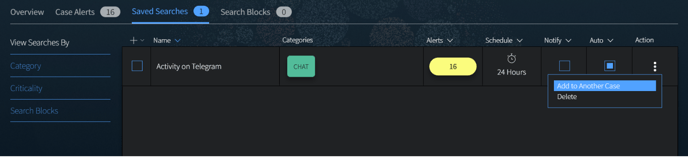
You can add Saved Searches into a Case using one of two methods:
- Create a new Saved Search and save it directly into a Case
- Copy an existing Saved Search into a Case
Once a search is associated to a Case, it will appear in the Case’s Saved Search tab. Any subsequent Alerts generated from that Case Saved Search will appear in the Case Alerts tab.
Create a New Saved Search and save in a Case
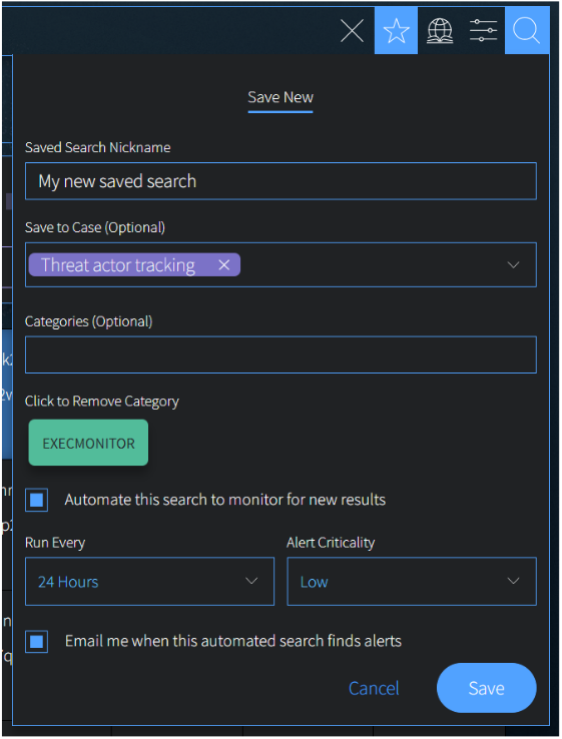
On the search bar, when you create a Saved Search, you can add it directly to a Case. After you run a query, the Save Search icon (star icon) will appear on the right side of the search bar. Selecting that icon will open a form:
- Add a Saved Search Nickname.
- Select one or more Cases to save the search into (optional).
- If a Case is selected: the search will be saved directly to that Case. If you have selected the Automate this search option below, any Alerts generated will be automatically saved into that Case as well.
- If a Case is not selected: the search will be saved in the list within your Tools > Saved Searches page.
- Add Categories (optional). Categories can help you sort your searches and alerts.
- Click Automate this search, if you’d like to apply monitoring. If this is selected, additional options for Frequency, Criticality, and Email Notifications will appear.
- Click Save when complete.
Copy an Existing Saved Search into a Case
You can copy a previously created Saved Search (appearing in your Tools > Saved Search list) into a Case. This will create a new version of the Saved Search in the Case; the original version will remain in your Tools > Saved Search list unless you opt to delete it. Additionally, any Search Blocks that are contained wihtin the Saved Search will also be copied into the Case automatically.
There are several ways to copy an existing Saved Search into a case:
- When you’re on the Case Overview page, you can select the Add Search button.
- When you’re in the Tools > Saved Searches page, you can select the Action menu next to any search to Add to Case.
- Once you have added a Case Saved Search, you can copy it into Another Case.
From the Case Overview page: In the Saved Search box on the Case Overview page, click on Add Search.
- This will bring up a modal that includes a list of all searches from your Tools > Saved Search page
- Select the search(es) you’d like to copy into this Case
- Click Save Searches
Note: After you’ve finished adding searches, if you only want to keep the Case version of a search, we recommend going to the Tools > Saved Search page and deleting the original search(es).



From the Tools > Saved Searches page: Navigate to the Tools > Saved Searches page and find the search you would like to copy into your Case.
1. Click on the Action button on the right side of the table: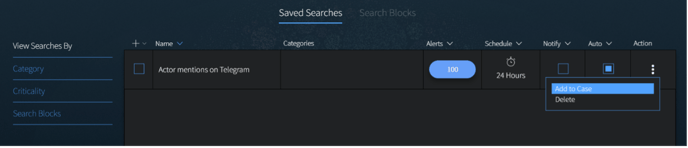
2. Select Add to Case, which will bring up the Add Saved Search to Case modal. Use the drop-down to Select the Case(s) you’d like to copy the search into. If you only want to keep the new copy of the search – the Case search – you can uncheck the box. This will delete the original search from this list automatically.
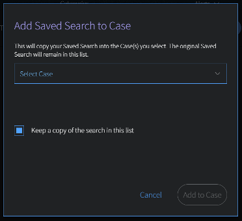
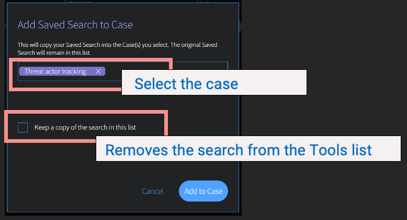
3. Click Add to Case. This will bring up a confirmation modal, indicating that your search has been saved successfully to the Case(s) you chose.
From the Case Saved Search page: Once you have added a Saved Search to a Case, you can add it to another Case. The workflow is the same as the previous section.