
When you copy an existing Saved Search that contains a Search Block into a Case, that Search Block will automatically be copied into the Case. If needed, you can create Search Blocks within a Case, or copy existing personal search blocks into Cases.
Create a new Search Block within a Case
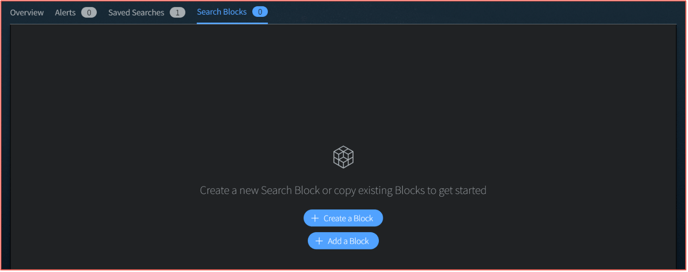
Open the desired Case, and navigate to the Search Blocks tab. Click Create a Block. This will open the same Create a Block workflow that exists in Vision UI; the only difference is that upon saving, it will save specifically to this Case.
Copy an Existing Search Block into a Case
There are several ways to copy an existing Search Block into a case:
- When you copy an existing Saved Search that contains a Search Block into a Case, that Search Block will automatically be copied into the Case.
- When you’re on the Case Overview page, you can select the Add Block button.
- When you’re in the Tools > Search Blocks page, you can select the Action menu next to any personal search block and Add to Case.
- Once you have added a Case Search Block, you can copy that search into Another Case.