
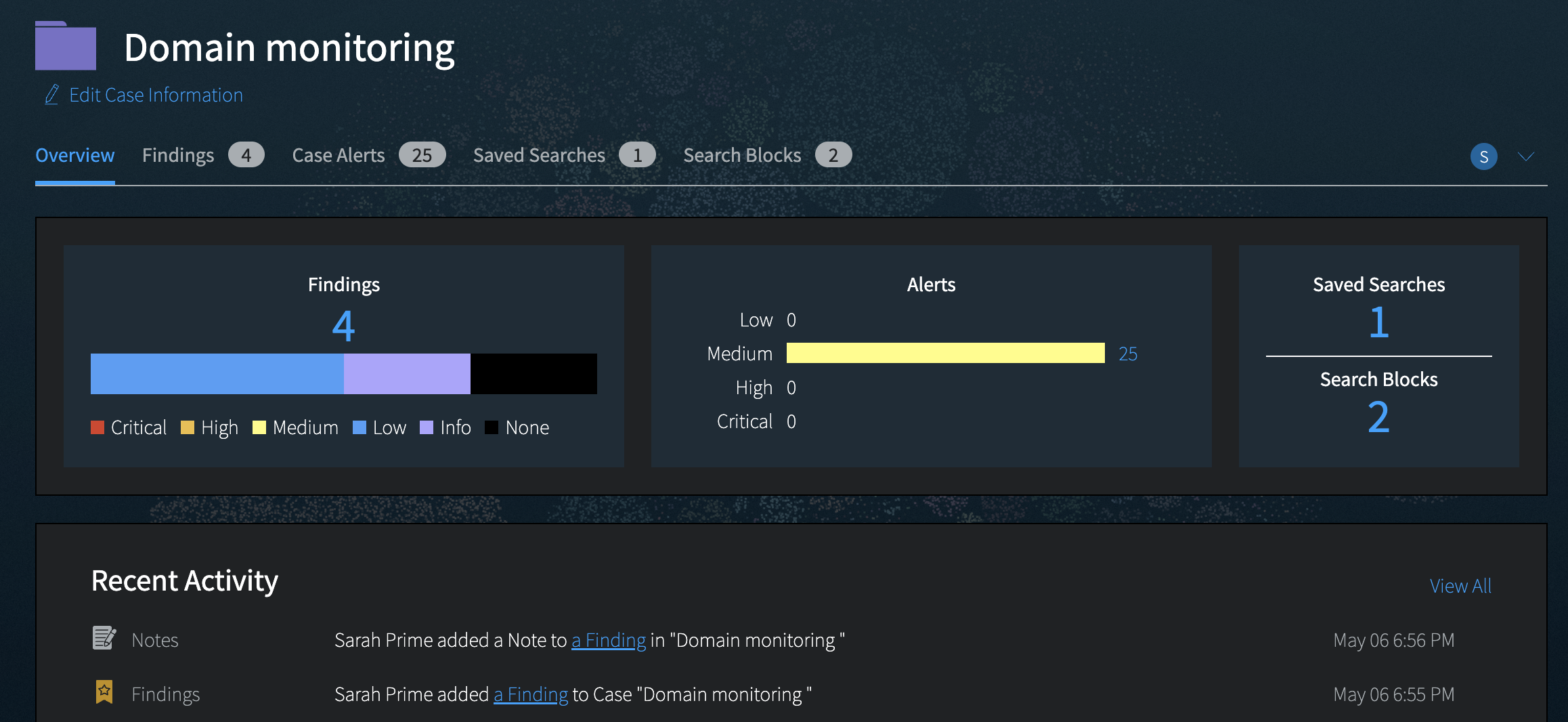
- Case Masthead: This will show the Case Name, as well as a Description, if you’ve added one. You can always update this information by clicking Add Description or the Edit button, which appears once you’ve input description text.
- Case Tabs: Overview (default), Findings, Case Alerts, Saved Searches, Search Blocks. These tabs allow you to toggle between the different items in your Case.
- Summary panel: The boxes will display the number of Findings, number of Case Alerts, number of Searches, and number of Search Blocks associated with the Case. The Findings, Alerts, Searches, and Blocks boxes are hyperlinked to bring you directly to those sections.
- Activity panel: This section will show recent activity related to the Case. Click the View All link to see all activity related to the Case.
- Case Members and Roles: This drop-down will show who is working on the Case, and allow you to add, remove, or modify member status. When a case is not shared, you will see your personal icon; when it is shared, you will see the Team icon and the number of people collaborating on the Case.