
You can opt to collaborate on Cases with another Vision UI user in your organization. Once a Case is shared, anyone with access to the Case can add, edit, or delete items in a case. This allows you to work together on keyword lists, share searches, and jointly manage a shared set of Alerts. You can click Share Case when you first set up a Case, or click on the drop-down next to the personal (or team) icon on the right side of the screen (5 in the above screenshot).
1. Click the drop-down, and then click Add Member or Manage, if members have been added.
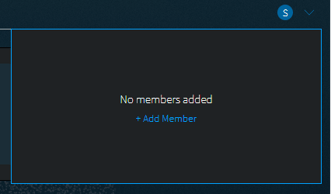
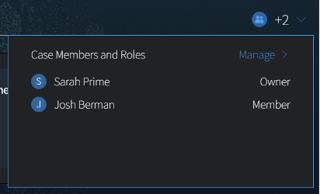
2. This will open the Manage Members modal.
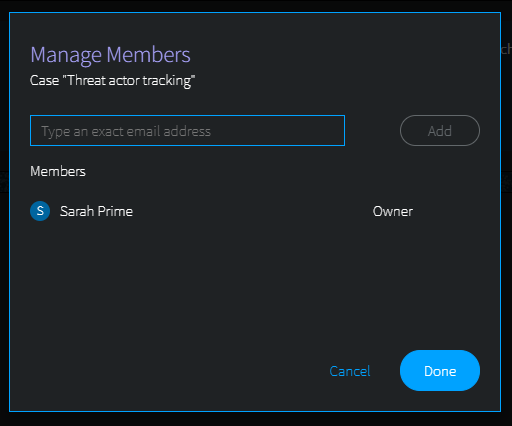 3. Type an exact email address of the person within your organization that you’d like to add to the Case, and then click Add.
4. When you're finished adding members, click Done.
Case Roles: Case Owner and Case Members
Each Case must have an Owner, and can only have one Owner. Anyone with access to the Case (Owner or Members) can add, edit, or delete items in a Case, including Alerts, searches, or search blocks. There are only a few functional differences between a Case Owner and Case Member. Differences include:
- Only the Case Owner can promote another member of the Case to be a Case Owner. When this happens, the Case Owner becomes a Case Member.
- The Case Owner cannot remove themselves from a Case. To do this, the Case Owner must promote another Case Member to Case Owner. Then, as a Case Member, they can remove themselves from the Case.
|
|
Case Owner |
Case Member |
|
Add searches or search blocks into a Case |
X |
X |
|
Edit searches or search blocks within a Case |
X |
X |
|
Delete Alerts, searches, or search blocks within a Case |
X |
X |
|
Add Case Members to a Case |
X |
X |
|
Designate a Case Owner |
X |
|
|
Remove yourself from a Case |
|
X |