
The Entity Explore page allows you to look up six Entity types (Email Domain, Email Address, Credit Card, Bank Identification Number, IP Address, or Cryptocurrency) and view information about that entity in our overall dataset.
To get started, use the drop-down to select a type of Entity, and then type the specific value in the look up bar.

Once you do a look up, you will see the first page of results, and can click the left arrow to see more. The screen will display several sections:
- Date Range, Total and Unique results found during Date Range
- Timeline of result set found during Date Range
- Summary Information for the result set
- Itemized entity result list
Timeline
The Timeline will plot mentions of that entity found in our dataset over time. BIN, Credit Card, Email Address, and Email Domain display Stacked Bars, to indicate whether the entity was a ‘mention only’ (blue) or a ‘mention + details’ or ‘mention + password’ (yellow).
- For BINs and Credit Cards, the yellow part of the bar indicates the card was found with either a CVV or expiration date.
- For Email Addresses and Email Domains, the yellow part of the bar indicates the email address was found with a password (either plaintext or hashed).
If there are more than 1 page of results, you can use the left Arrow action button to see previous results. If the left Arrow does not appear, there are no more results.
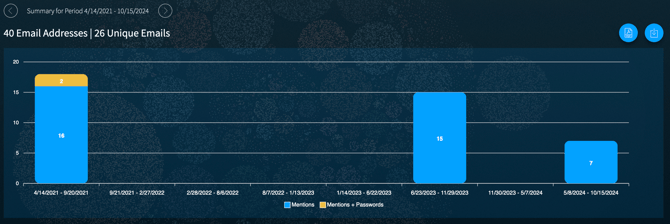
You can click on any of the bars on the Timeline to filter to that result set. You’ll note when you do, the bottom of the page updates its information for just that result set shown. Click the Clear Filter button to reset to the original result set at any time.
Action Buttons
The Action Buttons appear next to the number of entities, and include:
- Left Arrow: See the previous page (reporting period) of results (if this arrow is not active, it means there are no additional results).
- Right Arrow: See the next page (reporting period) of results.
- Download PDF: Download a PDF report of the reporting period results (available for Email Domain and Email Address entity types).
- Download CSV: Download a list of results (available in active client accounts).
- Reset: Clears any filters selected and shows all results within the reporting period.

Action Buttons will only appear when the action is available (i.e. if no filters have been selected, the Clear Filters button will not appear). Note: The download actions are available to active client accounts.
Summary Information
This section will show boxes with various result set facets. Most items in these boxes act as can be selected as filters, to narrow your result set list below. Note: if there are more than 10 items, you can scroll to see the full list. All entity types will show the following summaries:
- Sources: The breakdown of results found within each network and/or data leak content.
- Data Leaks: Shows the breakdown of emails found by individual data leak. Click the Context button to open a Leak Context panel. Click the X in the upper corner to close the panel.
About Leak Context: Leak Context is information from the DarkOwl analyst team that provides enrichment regarding the leak, and may include relevant dates, content information, and target information. More information and details about Leak Context fields is available in this article.
Some types have additional summaries, as indicated below.
- Card Details (BIN and Credit Cards): Shows the breakdown of unexpired cards, cards with cvv and/or exp date, and cards without details.
- Password Details (Email Address and Email Domain): Shows the breakdown of emails found with plaintext password, with hashed password, and without password.
- Password List (Email Address): Shows a list of all plaintext passwords found in the result set.
Entity Result List
This is a list of itemized results, based on any filters you have applied. You can click on the `See Full Result` icon to go to the Research section to see the whole page from our indexed document collection.