
The Leak Explore page allows you to search for and view analyst-curated information about the data leaks or breaches included in the DarkOwl Vision dataset.
All Leaks
The charts at the top of the page provide information about the leak dataset overall, including the volume of leaks, as well as top countries, content, and industries related to our leak dataset.

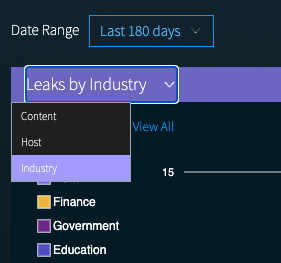
Clicking on View Charts will bring you to an expanded visualization section showing Leaks by {Content, Host, or Industry} over time, as well as total Leaks by Industry, and Leaks by Country.
- Use the Date Range drop-down to change the time period shown in the charts.
- In the top timeline chart, toggle between Leaks by Content, Leaks by Host, or Leaks by Industry by selecting the desired option from the drop-down.
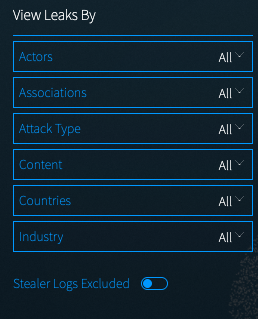
To start looking up leaks, you can start typing in the Search Lookup Bar, or you can use the Filter options on the left to View Leaks by Actors, Associations, Attack Type, Content, Countries, or Industry.
The Stealer Log toggle gives you explicit control over whether Stealer Log entries appear in your leaks list. Tap the toggle to exclude them when you need a cleaner view of breach-sourced entries.
Individual Leaks
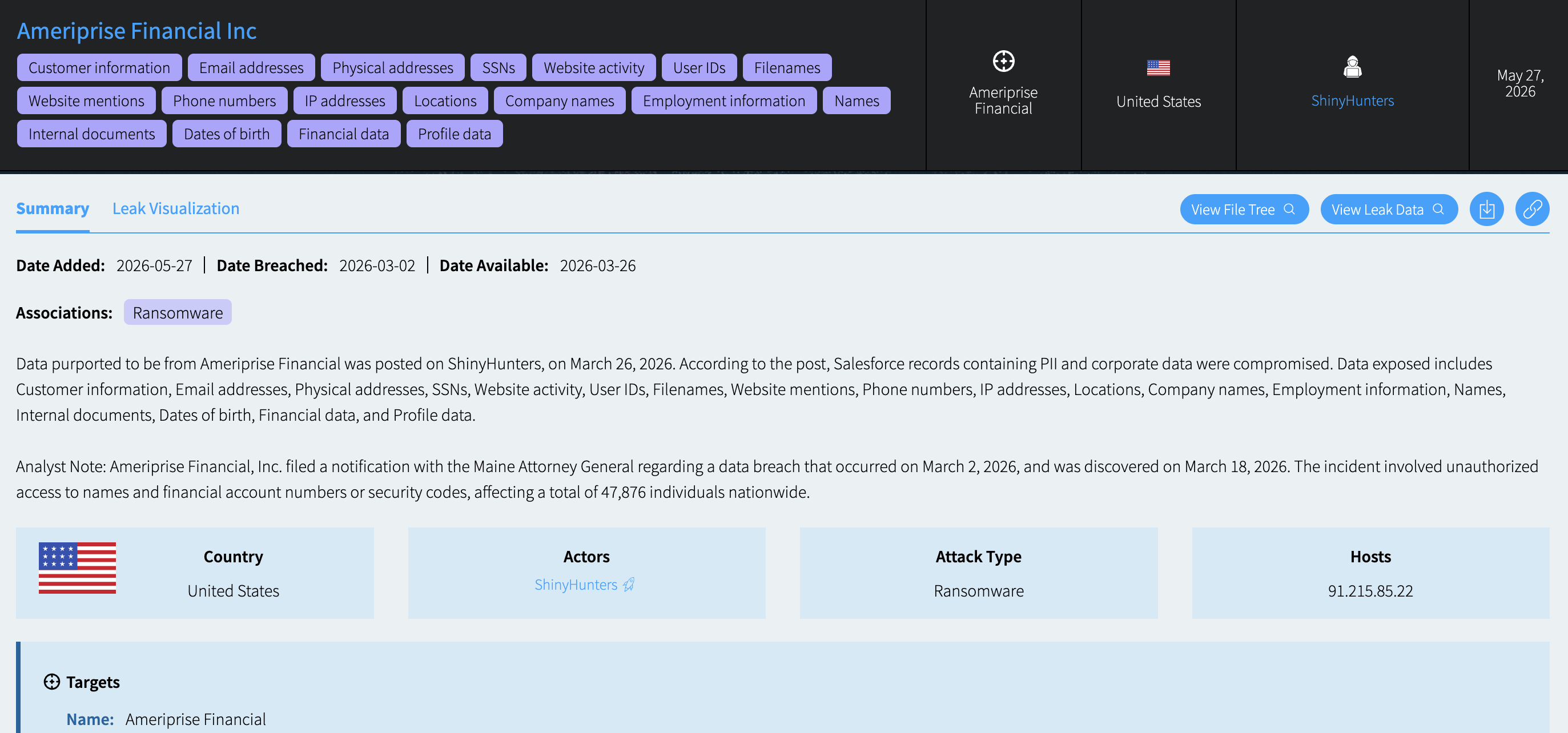
Clicking on an individual leak on the table will bring you to the detail page for that leak. This provides information from the DarkOwl analyst team that provides additional enrichment regarding the leak, and may include relevant dates, content information, and target information. It includes the same text fields as the Leak Context feature, which is available on leak search results. Individual leaks also include actions, which include:
- Viewing the filetree in the Research section, if available
- Viewing the data in the Research section
- Downloading the Leak Context for this leak
- Clipping a link to this leak entry
- Pivoting to the Actor Explore page, if an Actor entry is available
- Pivoting to the original post or Telegram channel, if available
Leak Visualization
Clicking on the Leak Visualization tab will show an analysis of the volume and type of files contained within the leak, if available. This visualization shows the top 10 file extensions by volume found within the original files. This can help identify the scope of the data within the leak, to quickly show whether the data was from one CSV file, or included a variety of images and document types. Note: Leaks added to the DarkOwl dataset prior to April 2024 may not include this visualization feature.
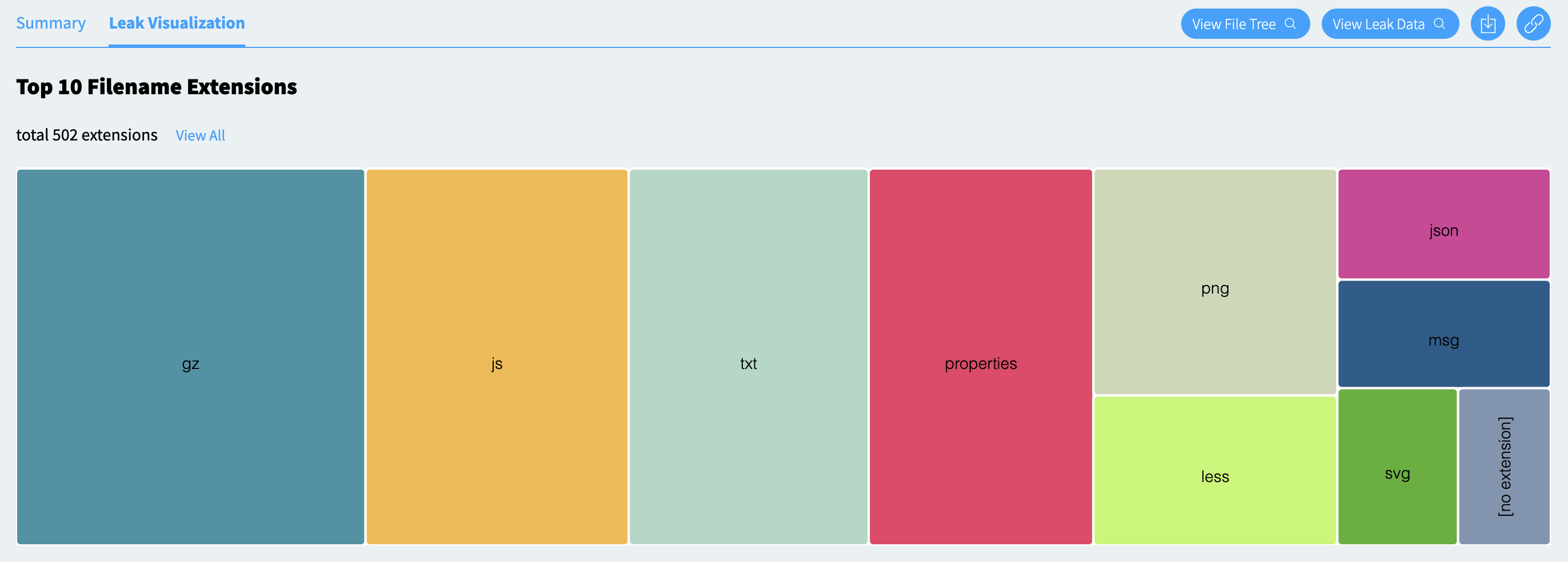
Clicking the View All link will open a detail panel which will list all of the extensions included within the leaked data, and the number of files of each.
