
Refine your search with various filter and date options; click on the Filters icon on the right side of the search bar to get started.
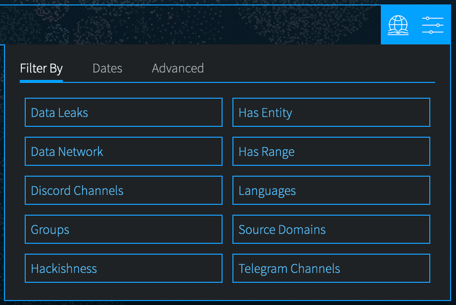
Filter Menu
Click on the right Filter menu to select filter options. These allow you to refine your search, select date parameters, or choose other advanced options.
Data Leaks
Filter or exclude content from any known data leaks or breaches. Click the box next to the desired option. To find individual leaks, see the Leak Explore section or the Lexicon.
For free text searching, type leak:leakname in the search bar, prefixing with - to exclude data from that leak.
Data Network
Filter to content from a particular DarkOwl data collection network. Options include: Discord, FTP, I2P, IRC, Onion, OpenNIC, Telegram, Zeronet. Click once to include, click twice to exclude.
For free text searching, type network:networkname in the search bar, prefixing with - to exclude.
Discord Channels
Filter to content from one or more specific Discord channels or servers. Click the Add button, and then type either one channel name, channel ID, server name, or server ID in the box. You’ll note that quotation marks are automatically applied when you start typing. You can add up to 10 channels or servers per query. You can remove previously entered channels or servers by clicking the X next to the channel or server to remove.
For free text searching:
- To filter to one channel or server: Type discord:"Ground Control" in the search bar
- To filter to one channel ID or server ID: Type discord:"757762132962967624" in the search bar
- To filter to multiple channels/IDs: Type discord:("757762132962967624" OR "Ground Control")
- To exclude discord channels or servers (free text searching only): preface the search operator with a hyphen: -discord:"Ground Control"
Telegram Channels
Filter to content from one or more specific Telegram channels. Click the Add button, and then type either one channel name or one channel ID in the box. You’ll note that quotation marks are automatically applied when you start typing. You can add up to 10 channels per query. You can remove previously-entered channels by clicking the X next to the channel to remove.
Note: when typing a channel ID, use the hyphen prefix, e.g. -1001556588508.
For free text searching:
- To filter to one channel: Type telegram:"EVILX.su Leaks Chat" in the search bar
- To filter to one channel ID: Type telegram:"-1001556588508" in the search bar
- To filter to multiple channels/IDs: Type telegram:("-1001556588508" OR "EVILX.su Leaks Chat")
- To exclude telegram channels (free text searching only): preface the search operator with a hyphen: -telegram:"EVILX.su Leaks Chat"
Groups
Groups are combined filters that narrow your search to specific categories; click to include:
- Authenticated Sites: Filter to content from sites requiring credentials or other challenges.
- Blogs: Filter to content from sites identified as blogs.
- Chans: Filter to content from a curated set of chan/imageboard forums selected by our analysts.
- Darknet: Filter to content from the Tor, I2P, and Zeronet darknets.
- Forums: Filter to content from sites identified as forums.
- Forum Posts: Filter to content specifically from forum posts (the Forums group will also include content from forum sites that may not be posts such as member profile pages, etc).
- Markets: Filter to content from sites identified as darknet marketplaces or vendor shops.
- Ransomware: Filter to content from known ransomware sites.
- Paste Sites: Filter to content from a curated set of paste sites.
Source Domains
Filter to content from one or more domains, or exclude a particular domain by typing a hyphen in front of the domain. Type only the domain portion (such as, arch3rsecgjqcmjb.onion; no need for the www or http:// prefix) in the filter box. Be sure to remove any trailing slashes or paths from the domain.
For free text searching, type domain:domain.com in the search bar, prefixing with - to exclude.
Hackishness
Hackishness assigns a rating to every piece of content collected, indicating the likelihood to which the information could be used for criminal activity. The lower bound of hackishness is .01 and the upper bound is 1.0; the UI shows these as percentages on search results. You can quickly filter to results with hackishness by using the slider on the Hackishness filter to select a desired hackishness threshold.
You can also filter to hackish results using hackishness: in the search bar, which supports searching as range. This means, you can narrow down to values between two parameters, inclusive or exclusive, for example:
• hackishness:[.01 TO 1]
• hackishness:{.01 TO 1}
Note the '[' and '{' characters used above. In Lucene range queries, '[' and ']' are inclusive so the first query above would return values from .01 to 1, including both .01 and 1. The second example would return values from .01 to 1 not including .01 or 1. '[' and '{' can be combined:
• hackishness:{.5 TO 1]
The above will find values greater than .5 and up to and including 1.
Has Entity (Credit Cards, Cryptocurrencies, Email, IPs, Social Security Numbers, Website Mentions)
Filter to content that have at least one selected Entity. Click next to the Entity name to select. Click again to exclude documents that contain that entity.
Language
Filter to content in a particular language. Languages are detected by DarkOwl Vision at the time of ingestion, using natural language processing. Click once to include.
For free text searching, type language:languagevalue in the search bar
Dates
Use the drop-down to quickly select a time range for search results, or select Custom to choose a specific start/end date.
Use the toggle to choose between filtering by Crawl Date or Post Date:
- Crawl Date: Filters to any content that DarkOwl collected between the specified dates.
- Post Date: Filters to any content that was posted between the specified dates. Filtering by Post Date will filter to results where the post date is known. Other search results will be excluded.
Dates can be searched in the search bar as a range using the following date format: YYYY-MM-DDTHH-MM-SSZ:
- crawlDate:[2021-07-01T00:00:00Z TO 2021-07-10T23:59:59Z]
- published:[2021-07-01T00:00:00Z TO 2021-07-10T23:59:59Z]
As the Date filter supports range searching, you can narrow down to values between two parameters, inclusive or exclusive, as discussed in the hackishness section. In Lucene range queries, '[' and ']' are inclusive, and '{' and '}' are exclusive.
Advanced Options (Sort By, Show Similar, Empty Bodies)
Use Advanced Options to select a Sort option, or to show all results (including duplicates).
• Sort options. Use the drop-down to sort your results by Relevance (default), by Hackishness, by Crawl Date, by Post Date
Note: Sorting by Post Date will filter to results where the post date is known. Other search results may be excluded.
• De-duplicate your results. A maximum of 20 results are returned per page. You can choose to de-duplicate similar results on a per-page basis (default) or see all results. The default is to de-duplicate results on each page; you can toggle this on or off.
• Empty bodies. Our collection includes documents collected that do not contain any text characters; text content is stored in the Body field. Use the drop-down to select:
-
- Any document (documents can include text in the body, or no text in the body)
- Results must have body field (default) (to only return documents that had text content on them)
- Results must not have body (to see only documents without text)
You can personalize your experience and change the above defaults. When you select a new option in any of the above settings, a button will appear to Save as Default. Clicking to save will remember these settings for future searches.