Skip to content
  • There are no suggestions because the search field is empty.

Multi-Factor Authentication (MFA) Guide

Set up MFA on an existing account, a new account, or manually with Google Authenticator App.

  1. Adding Google Authenticator to Existing Accounts
  2. Setting up New Accounts with Google Authenticator app
  3. Manual Set up Steps

Adding Google Authenticator to Existing Accounts  

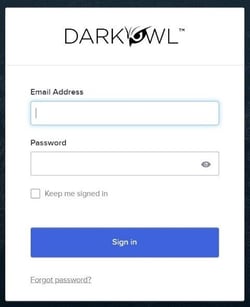
1. Log in to vision.darkowl.com with your existing credentials.

A screenshot of a login form

Description automatically generated

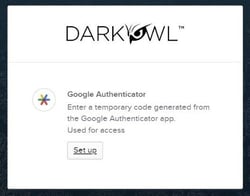
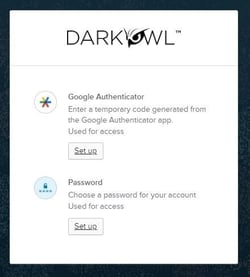
2. You will be prompted to set up Google Authenticator. Click the “Set up” button.

A screenshot of a computer

Description automatically generated

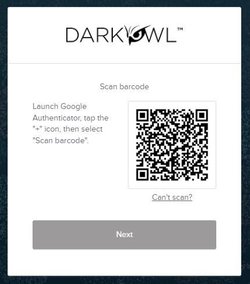
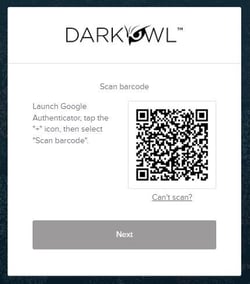
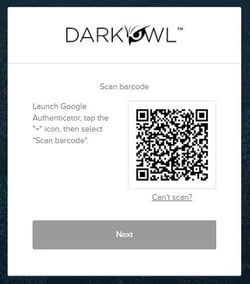
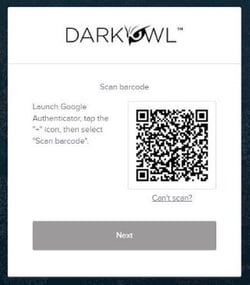
3. This will open the Scan Barcode screen.

A screenshot of a qr code

Description automatically generated

4. Open the Google Authenticator app on your mobile device.  

  • Then tap the + (plus) icon. 
  • Click the “Scan a QR code” option. (Depending on your settings, you may need to Allow Authenticator to take pictures and record video. We recommend selecting the “Only this time” option.) 
  • Your mobile device screen should now be ready to scan the barcode.   
  • Note: if you are unable to Scan, go to the Manual Set up Steps section. 
5. Go back to the Scan Barcode screen and scan the QR code with the app.
  • The authenticator app will confirm a successful scan, and create a new entry in your list.   
  • Additionally, you will also receive a confirmation email when you have successfully added your Google Authenticator. 
 6. Click “Next” on the Scan Barcode screen to continue set up.
7. Click “Next” on the Scan Barcode screen to continue set up.
8. That’s it! You should be at the DarkOwl Vision start screen. 

Setting up New Accounts with Google Authenticator app  

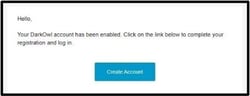
1. Click on the “Create Account” button (or click on the direct link) from the “Create Your DarkOwl Account” email.   
  • You will receive an email to “Create Your DarkOwl Account” after your DarkOwl Vision account has been set up. The link in this email will allow you to set up your password and authenticator. The email will come from DarkOwl Notifications (notifications@notification.darkowl.com)
MFA Guide 1-1
2. We will set up authentication first. Click the “Set up” button below the Google Authenticator selection.  A screenshot of a login page

Description automatically generated
3. This will open the Scan Barcode screen. A screenshot of a qr code

Description automatically generated
4. Open the Google Authenticator app on your mobile device. Then: 
    • Tap the + (plus) icon 
    • Click the “Scan a QR code” option (Depending on your settings, you may need to Allow Authenticator to take pictures and record video. We recommend selecting the “Only this time” option.)  
    • Your mobile device screen should now be ready to scan the barcode  
    • Note: if you are unable to Scan, go to the Manual Set up Steps section Step 4. 
5. Using your mobile device, go back to the Scan Barcode screen and scan the QR code:
    • The authenticator app will confirm a successful scan, and create a new entry in your list.  
    • Additionally, you will also receive a confirmation email in your inbox. 
A screenshot of a qr code

Description automatically generated
6. Click “Next” on the Scan Barcode screen to continue set up.

7. On the following screen, enter the MFA code displayed in your authenticator app, and click “Verify.” 

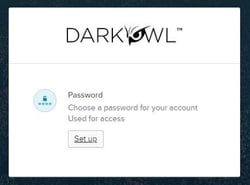
8. This will return you to the Set up screen, which will allow you to create a Password for your account. Click “Set up” below the Password option: A screenshot of a login screen

Description automatically generated

9. Fill out the password field prompts to enter and re-enter the password. Then click Next.  

    • Additionally, you will receive a confirmation email when you have successfully added your Password.
10. Finally, submit the Complete Registration modal to finalize your account set up, and start using DarkOwl Vision UI!  


Manual Set up Steps  

Use these instructions only if you are not able to scan the QR code in Step 4. 
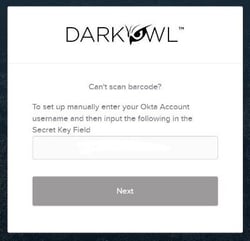
4. Click the “Can’t scan?” link below the QR code. A screenshot of a qr code

Description automatically generated
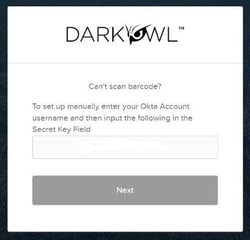
5. On the next modal, you will see instruction text along with a unique secret key:  
    • Note: Your Okta Account username is your DarkOwl Vision email address  
A screenshot of a login page

Description automatically generated
6. Open the Google Authenticator app on your mobile device.   
    • Then tap the + (plus) icon. 
    • Click the “Enter a Setup Key” option. 
    • Enter your username (this is your DarkOwl Vision email address) 
    • Enter your Secret Key shown from the modal Secret Key Field 
      • Make sure the drop-down says “Time based”   
      • Click Add 
    • You will get a confirmation that the authenticator has added to your list. You will also receive a confirmation email in your inbox.
7. Go back to the browser and click the Next button: A screenshot of a login page

Description automatically generated
8. On the following screen, enter the MFA code displayed in your authenticator app, and click “Verify.” 
    • If you are an existing user: That’s it! You should be at the DarkOwl Vision start screen. 
    • If you are a new user: Submit the Complete Registration modal to finalize your account set up, and start using DarkOwl Vision UI!