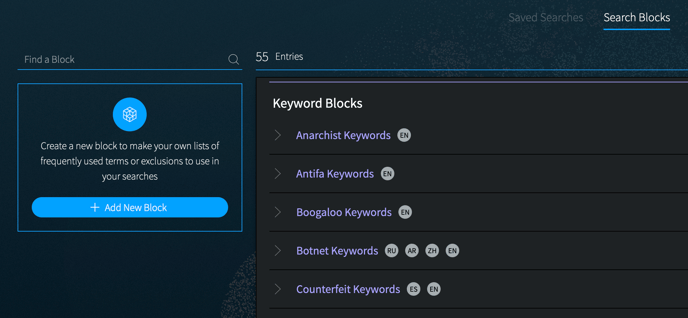
Search Blocks are reusable search components and appear in Search Tools for quick access. Use Search Blocks to create lists of commonly searched items, such as a list of company names, IPs, or domains; or create any query string that you’d like to use across multiple searches.
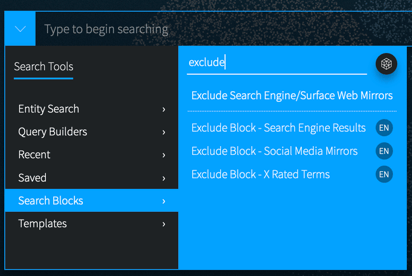
You can use the same block in multiple searches, which can help save you time when you are building queries that have similar elements. Additionally, when you update a block, all searches that use that block are automatically updated to use the new block content.
Initially, you’ll see a list of pre-built blocks in the Search Tools list and Search Block page, which were created by DarkOwl analysts. After you create your own search blocks, they will appear at the top of the list. Begin typing in the Find an Entry field to filter the list.
You can create search blocks in a few different ways:
- Select Create a New Block on the Tools: Search Blocks page build a new list from scratch.
- On the Search Blocks page, click on the Edit icon next to a pre-built block. Make modifications and save as a new block.
- When you are in the Entity Search, click on the block icon to convert into a new block. In addition to creating a new Search Block, Entity Search Blocks also allow you to Set Up Monitors.
You can manage your Search Blocks on the Tools: Search Blocks page. Pre-built blocks include curated keyword lists, as well as blocks that help you exclude terms.