
Access your Track: Alerts page from the top navigation (1), or the Alerts widget on the Dashboard. Alerts are results found by your automated saved searches. Your Alerts dashboard (2) will display the number of active Critical, High, Medium, and Low results. If you have created categories, you can toggle the view to display by Criticality or Category (3).
Note: Case Alerts are generated by Case Saved Searches within a particular Case. The Track: Alerts section includes Alerts generated by Saved Searches that are not organized into a Case.

Alerts Page
The Alerts page will display your result list. Each entry will include an excerpt from the result (around the first keyword match, if applicable), the location where the result was found, the Saved Search name, the Alert date, hackishness, and relevance of the result.
Use the Filter By menu on the left to view Alerts by Category, by Criticality, or by Search Name.
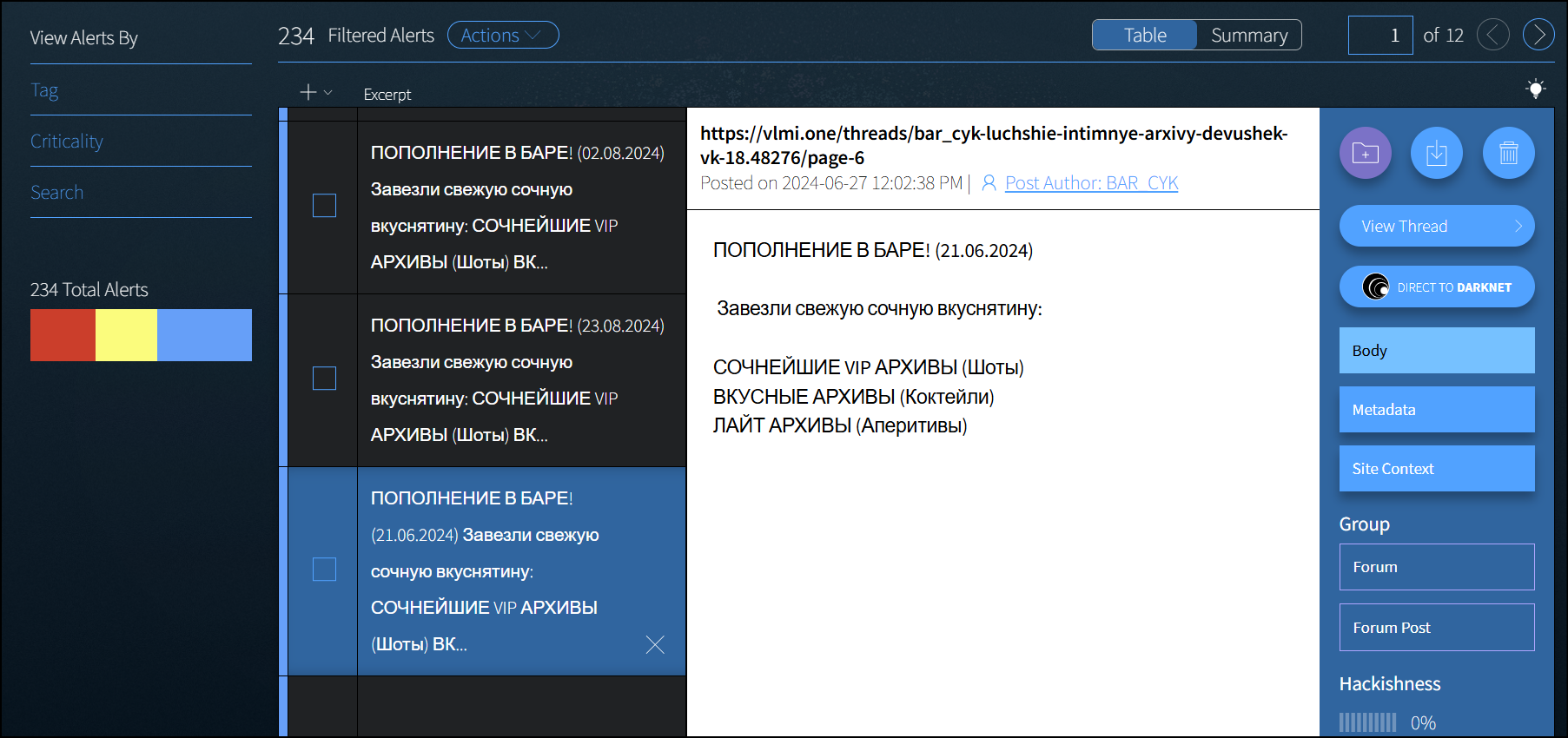
Reviewing Alerts
Click on an Alert to open it for review. Each Alert includes options to Add to Case Findings, Download, or Delete.
Clicking on Add to Case Findings will open a modal in which you can select one or more Cases to which to preserve the Alert result. The selected results will be added to the Findings section of the chosen case(s). The results will not be removed from your Alerts list until you delete them.
Alert Actions
The Actions menu provides options that can be applied to multiple alert selections, including:
- Add to Findings: Check the box in the Alert list next to one or more alerts you want to preserve as Findings in one or more Case(s). Then use the Actions drop-down list to Add to Findings in another Case. This will open a modal in which you can select Cases. The selected items will be added to the Findings section of the chosen case(s). They will not be removed from the current Case Alerts list until you delete them.
- Delete Selected alerts (one or more): Check the box in the Alert list next to the alerts you want to delete. Then use the Actions drop-down list and choose Delete selected.
- Delete Unselected alerts (one or more): Check the box in the Alert list next to the alerts you want to delete. Then use the Actions drop-down list and choose Delete unselected.
- Delete All alerts: Click the Actions drop-down list and choose Delete all alerts, and then confirming on the modal.
Note: You may experience a browser delay when deleting multiple alerts, or alerts that are large in size.