You can find your Saved Searches in one of two places:
-
Within your Cases; each Case includes a Saved Searches section
-
Saved Searches that are not associated with a Case are found in the Tools: Saved Searches section
Viewing Your Saved Searches
From either location, click on a Name to open its Search Detail:
-
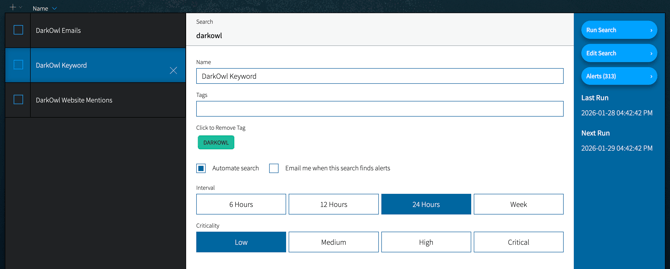
The search query is displayed at the top of the main detail panel.
-
View or update the search Name or its Tags using the appropriate fields.
-
Enable/disable search automation (monitoring) for the search by toggling Automate Search.
-
If Automate search is selected, you will see additional options to adjust the run frequency, criticality of the search, or receive notifications when Alerts are generated.
On the right panel, you can take actions to Run Search or Edit Search (the search query itself). Both of these actions will route you to the Research section. If Automate search is selected, you will have additional options:
-
If the search has generated Alerts, you will see an Alerts button. If you are in a Case, you will be routed to the Case Alerts section; if you are in Tools, you will be routed to the Track: Alerts section.
-
You will see Last Run and Next Run timestamps indicating when the search last ran and the next time it will run.
Editing Your Saved Search Query
Choose the search you’d like to adjust, then click Edit Search from the right panel. This will bring you to the Research page, with your current search pre-populated in the search bar. From here, you can make changes to your search, such as adding or removing filters, adding keywords, etc. Once you have made adjustments, click the Search icon on the right side of the Search Bar as you normally would.
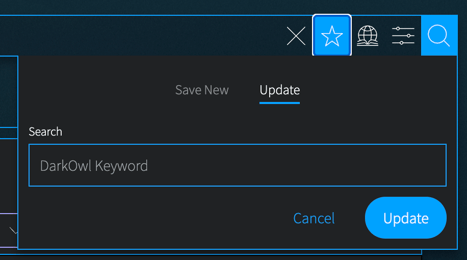
Ensure that the results are as expected. If not, continue adjusting your query and re-run the search. Once the query is to your liking, click on the Saved Search icon (star icon). The search name should already be pre-populated in the Update tab. Click Update to confirm.