
Findings are search results, alert results, or case alerts that you would like to preserve and annotate within a Case.
Saving a Search Result as a Finding
- With the search result open, you can add a Finding in one of two ways.
- Click on the Add to Case Findings icon in the upper right corner of the detail panel.

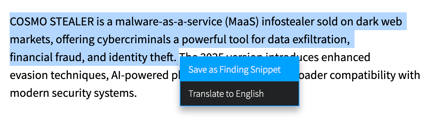
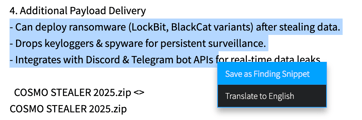
- Alternately, you can highlight a portion of the search result or Alert, and select Save as Finding Snippet from the menu.
- Click on the Add to Case Findings icon in the upper right corner of the detail panel.
-
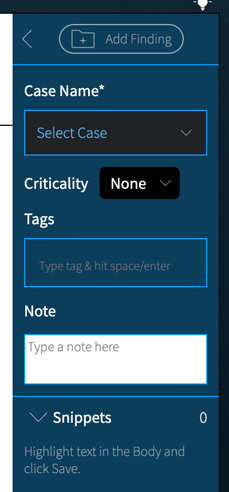
This will change the panel into the Add Finding view, which allows you to annotate the result directly, and then save it as a Finding into one or more Case(s):
-
- Case Name: Use the drop-down and select one or more Cases into which the result should be saved. This is a required field in order to create the Finding.
- Criticality: Select a Criticality ranking for the Finding. In addition to Low, Medium, High, or Critical rankings, an Info (informational) selection is available. This is an optional field; you can always decide to add or adjust Criticality after the Finding has been created.
- Tags: Select one or more Tags to apply to the result. This is an optional field; you can always decide to add or adjust Tags after the Finding has been created.
- Note: Type a note to explain why the finding is important. This is an optional field; you can always decide to add or adjust Tags after the Finding has been created.
- Snippet: To create a snippet, highlight a portion of the search result in the Body. When you do, a menu will open. Select Save as Finding Snippet. You can create more than one snippet for your Finding.
- Once you've filled out all information you would like, click the Add Finding button at the top of the panel. The result will be saved into the Findings section of the Case(s) selected.

Once a Finding is saved into a Case, you can always make additional annotations, change criticality, or apply additional Tags. See Working with Findings for more details.
Saving Case Alerts as Findings
Case Alerts can be saved as Findings into the current Case, or other Cases. They can be moved individually or as a group.
Move a single Case Alert to Findings in the Current Case
- From within the Case Alert detail, click on the Add to Case Findings icon in the upper right corner of the detail panel.
- This will immediately put the Case Alert into the Findings section of that Case. Note: Once moved into Findings, it is removed from the Case Alert list.
Move Multiple Case Alerts to Findings in the Current Case
- From the Case Alert table, click on the selection boxes on the left side of the Case Alerts that you would like to make Findings.
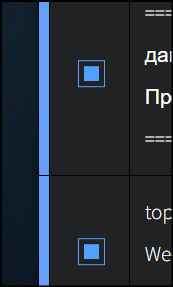
- You can select up to 20 Case Alerts to move at a time.
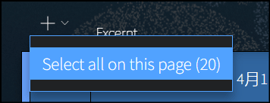
- If you would like to move all 20 Case Alerts displayed on the screen, click on the + drop-down on the top of the selection box column. Choose the option Select all on this page (20).
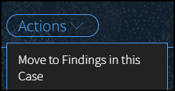
- Click the Actions button at the top of the Case Alerts table.
- Choose the selection Move to Findings in this Case.
- This will remove the Case Alerts from the list, and save them into the Findings section. Any Criticality or Tags attached to the Case Alert will be preserved in the Findings section (where they may be adjusted).
Saving Case Alerts as Findings in a different Case
- From the Case Alert table, click on the selection box on the left side of the Case Alert. You can select one or more Case Alerts at the same time.
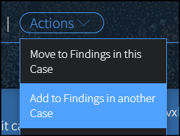
- Click on the Actions menu at the top of the Case Alerts table.
- Choose the selection Add to Findings in another Case.
- On the modal, click on the drop-down menu and select the desired Case or Cases.
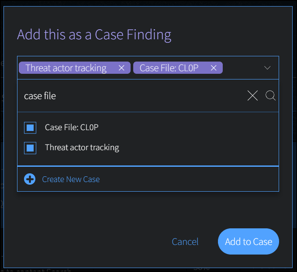
- If you would like to keep the Case Alerts in this list: uncheck the selection to Create Finding(s) and Delete from this List. Otherwise, once these are added as Findings, they will be removed from this Case Alert list.
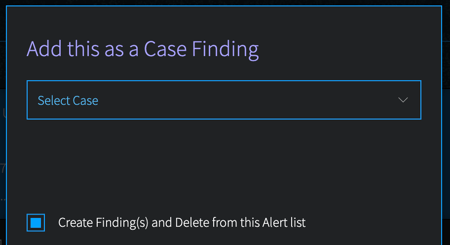
- Click the Add to Case button after you have made your selections. Any Criticality or Tags attached to the Case Alert will be preserved in the Findings section (where they may be adjusted).
Saving Alerts as Findings
Alerts from within the Track > Alerts section can be saved into Cases as Findings, individually or as a group.
Save an individual Alert as a Finding
- With the alert result detail open, click on the Add to Case Findings icon in the upper right corner of the detail panel.
- On the modal, click on the drop-down menu and select the desired Case or Cases. Click the Add to Case button after you have made your selections.
- This will copy the Alert and save it into the Findings section(s) of the Case(s) you selected. Any Criticality or Tags attached to the Alert will be preserved in the Findings section (where they may be adjusted).
Save multiple Alerts as Findings
- From the Alert table, click on the selection boxes on the left side of the Case Alerts that you would like to make Findings.
- You can select up to 20 Alerts to move at a time.
- If you would like to move all 20 Case Alerts displayed on the screen, click on the + drop-down on the top of the selection box column. Choose the option Select all on this page (20).
- Click the Actions button at the top of the Case Alerts table.
- Choose the selection Add to Findings.
- On the modal:
- Click on the drop-down menu and select the desired Case or Cases.
- If you would like to keep a copy of this Alert in this list, uncheck the selection to Create Finding(s) and Delete from this List. Otherwise, once these are added as Findings, they will be removed from this Alert list.
- Click the Add to Case button after you have made your selections. Any Criticality or Tags attached to the Alert will be preserved in the Findings section (where they may be adjusted).