
Findings are search results, alert results, or case alerts that you would like to preserve and annotate in a Case. Once a Finding is saved into a Case, you can:
- Snippet the most important information in the result;
- Write Notes on the Finding and collaborate with your team;
- Rank Findings by Criticality; and
- Add Tags to help organize your Findings.
- Export your Findings into CSV, DOC, or JSON formats.
For more information on how to create a Finding, review the Creating Case Findings article.
Overview tab
Findings are displayed in the Case Overview, and can be accessed through the Case navigation menu, or by clicking the number in the box on the overview page.

Findings tab
The Findings tab will display all of the results saved into the case. The top of the result set will include the total number of Findings, as well as:
- Actions that can be taken for for multiple Findings (delete selection, delete all).
- An Export icon to download all results into CSV, DOC, or JSON formats. You can export all, or use the drop-down to select a date range.
- A toggle switch to see Findings in Table view or Summary view. Table view is the default.
- The Findings table can be filtered by Criticality or Tag, using the filter icons at the top of each column.

Each row in the table represents one saved Finding. The row will include:
- A selection box column, which allows for group actions
- A caret icon to open or collapse the Finding
- Details of the result:
- What user added the Finding
- The Title of the result, if available
- The Excerpt from the original result. Note: If a user creates a Snippet from the result, the Snippet will be displayed instead of the Excerpt.
- Icons indicating entities contained with the result, if available. Note: Hovering over an icon will provide a pop-up indicating the entity type.

- Source of the result
- The date the Finding was created, Date Added, which is a sortable column
- The Criticality of the Finding, as selected by the user; this column may be sorted or filtered
- Tags assigned to the Finding, as selected by the user; this column may be sorted or filtered
- Actions that can be taken for the individual Finding (delete, add to another case)
Criticality
Assign a Criticality to a Finding by clicking the drop-down menu in the Criticality column. Select from Critical, High, Medium, Low, or Info (informational).
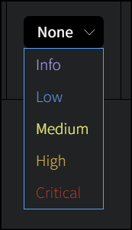
If a Finding was created from an Alert or Case Alert, the Criticality rating will be preserved from the original search Criticality rating. It may be changed here.
Tags
Assign one or more Tags to the Finding using these steps:
- Clicking on +Add. Note: If there are existing tabs, an Edit button will appear instead.
- Type the tag value.
- Press space or enter on the keyboard.
- If desired, type another tag value and press space or enter on the keyboard.
- After you have added all tags, click the checkbox to confirm the selection(s).
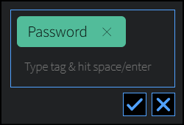
If a Finding was created from an Alert or Case Alert, Tags will be preserved from the original search Tags. To remove a Tag, start by clicking the Edit button. Click the X within the tag value that should be removed. If not adding additional tags (following the steps above), click the checkbox to confirm the removal.
Findings Detail
Click on the > caret, or within the Details column, to open a particular Finding.
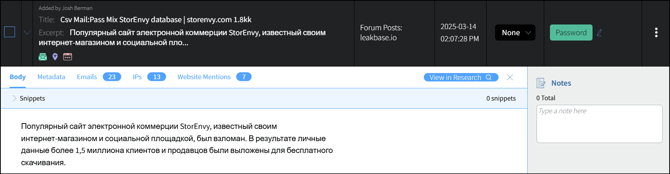
- Use the top navigation on the Finding to see the Metadata or lists of Entities included within the result.
- The View in Research allows the user to return to the result within the appropriate Research section.
- Click on the X to collapse the Findings detail. You may also click on the > caret or within the Details column again.
- The Snippets section will display one or more user-selected portions of the result.
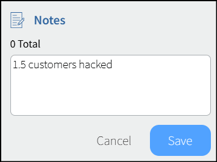
- The Notes section will display any user-generated comments for the result.
Snippets
You can designate a portion of the result as a Snippet. Snippets will be displayed at the top of the result in the Snippets section, and the oldest Snippet created will be displayed in the Details column. To create a Snippet:
- Highlight the portion of the result you want to capture.
- Click on the Save Snippet button, which appears in the Snippets section at the top of the result.
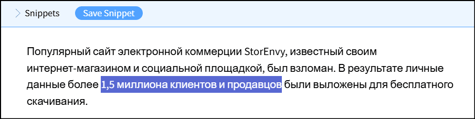
- Once saved, the text will appear in the Snippets section.
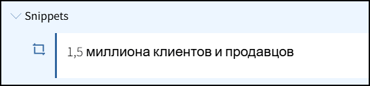
- Use the action buttons to view within the result, or delete the Snippet.

Notes
You can comment on Findings using the Notes feature. Begin typing a Note, and click Save when complete.
Findings Summary
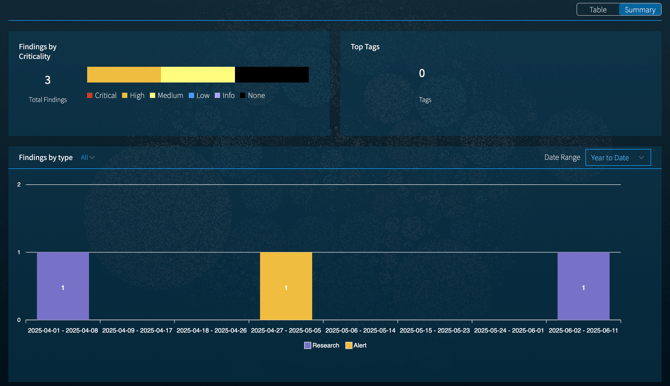
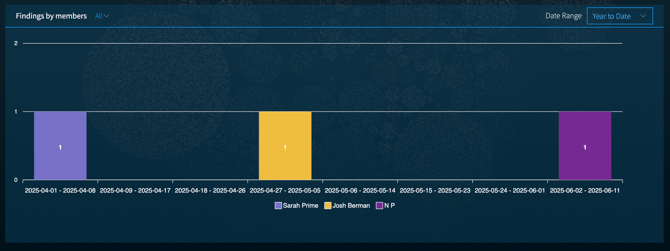
Click on the Summary view toggle to see a visual summary of the Case's Findings activity.

This section includes:
- Findings by Criticality
- Top Tags (click on View All to open a panel with all tags displayed)
- Findings by Type
- Findings by Member, if the Case is shared with another collaborator or Team
Findings Export
Select the Export icon near the top left of the Findings table, next to the Actions button.
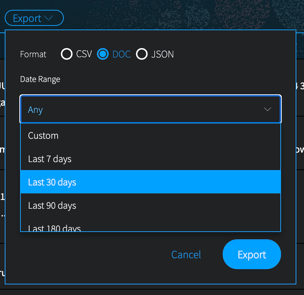
Choose the format that fits your workflow: CSV for spreadsheet analysis, DOC for narrative reporting, or JSON for programmatic use. If desired, you can additionally select a date range, or identify a custom range. Once all options are selected, the file will begin generating and will appear in your local Downloads folder.
Exported fields include:
- Your Snippet(s) or Excerpts
- Source metadata from where the result was collected, which can include source type, site/leak/channel names, URL, leak filepath and filename, or channel ID
- Collection crawl date and the date the Finding was added into the Case
- Annotations added to the Finding (criticality, tags, notes)