
After running a search, your result list will appear on the Research page for the appropriate section (Research: All Sources or Research: Markets). The list displays a summary including an excerpt from the result (around the first keyword match, if applicable), where the result was found, crawl date, hackishness, and relevance of the result.
Click on an Excerpt to open the full Result Detail; click on the X to close the Result Detail.
Our indexed document collection, which are the results you receive after doing a search in one of the Research sections, is processed into the following field categories:
|
Body field |
The raw text collected from the webpage/record/target. |
|
Metadata fields |
Fields we collect along with the body, if available, such as: domain, network, headers, leak information. Click on the Metadata and Leak view switches in Search Results to see this information. |
|
Mined fields |
Tokenized features we mine out of the body of the result, which are currently Entities (emails, credit cards, cryptocurrencies, cves, ip addresses, ssns, website mentions) and Chat-related information (users, user IDs, servers, channels, channel IDs). Entities and Chat Users appear as individual View Switches in Search Results, if present in the body. |
|
Processed fields |
Information we apply to a result from our natural language processing or machine learning, such as hackishness or language detection. |
When you do a search in the search bar from Home or Research, a maximum of 20 results are returned per page.
Deduplication of results: Vision UI includes a default setting to de-duplicate results on a per-page basis. This means that you may see fewer documents than the count displayed in Vision UI, since some of the results may be identified as duplicate.
If you would like to see all results, you can select the Show Duplicates option within the Filter menu on the Search Bar:
-
Open the Filter menu
-
Select the tab for Advanced Options
-
Check the toggle for Show Duplicates
Optionally, once you make the selection above, you can click the Save as Default button if you'd like to make this change permanent.
Viewing Individual Result Detail
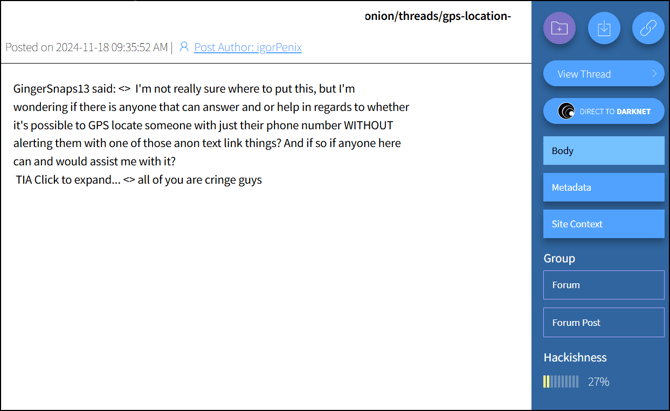
Results from our index include the following elements:
1. Source of the result and either the Crawl Date (when we added it to our collection) or Post Date (date of information, according to the original source). Additionally, you may see these options:- Forum, Paste, and Market Results: a Post Author or Vendor username will be present. You can click on this link to open a new search tab to search for other posts by the same username.
- Decoded URLs: DarkOwl Vision stores URLs in their encoded form; however, Vision UI will display the decoded form (i.e. with special characters or emojis). If the URL included these, an Encoded URL button will appear to allow the user to see the encoded URL.
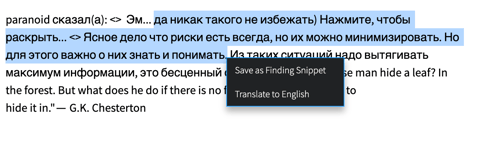
2. Within the Body text of the result, you can highlight a portion of the text to take the following actions:
- Save as Finding Snippet: this will automatically open the Add Finding view on the right side of the result. The portion of text you highlighted will be already selected as a snippet. In order to save your Finding, you will need to select the Case(s) name and click the Add Finding button. Prior to saving, you can optionally select criticality, type notes, or even create additional snippets. Learn more about Creating Case Findings here.
- Translate to English: this will translate the portion of text you highlighted. The original language will be autodetected, and the English translation will display in Vision UI. You can translate multiple selections within the result. Once the text is translated, a Reset Language button will be available at the top of the result to revert to the original form, if needed.
2. Result actions you can take:
- Add to Case Findings to preserve the result and organize into a Case. Learn more about Creating Case Findings here.
- Download the result as a .txt file.
- Copy Link to return to this result later.

3. Results that are forum posts or market listings have source-specific actions you can take:
- Forum Post Results: you can click View Thread to open a new window that reconstructs the posts into the original thread.

- Market Listing Results: you can click See Full Listing to research the result further in the Markets section. The Markets section will display all available structured attributes for the result.

4. If enabled on your account and applicable to the result, you will see the Direct to Darknet option. More information about this feature can be found in our Direct to Darknet article.

5. The right side will contain various View Switches to see the result, metadata, enrichment options, and various tokenized fields. Click on each switch to see the following:
- The Body is the content of the result. Note: in Research > Markets, this switch is titled Listing.
- Metadata includes where and when the result was collected. Clicking on the icon next to URI will allow you to copy the URL in a defanged format.
- If present in the Body, additional view switches will show Lists of Entities within the result (Emails, Cryptocurrencies, Cards, CVEs, IP addresses, SSNs, Website Mentions).
- Leak Context, Site Context, or Vendor Context may also be present depending on the type of search result and Research section. These are enrichment options to help provide additional known information about the source of the result or the vendor advertising the market listing.
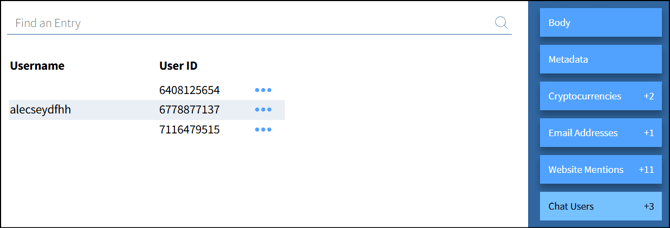
- Chat Users will be present if the result is from Telegram or Discord with Usernames and User IDs found in the result. The screenshot below shows the Chat Users switch active.
6. A Group heading will be present if the site has a classification. Some of the classifications include: Blog, Chan, Data Sharing, Directory, File Repository, Forum, Forum Post, Market, News, Paste, Search Engine, Social Media, Ransomware. Other classifications may be added in the future. Additionally, Authenticated Site will be present if the site required special access, such as a login or other challenge.
Keyboard Shortcuts
Navigate through Search Results using these keyboard shortcuts:
|
Key |
Description |
|
k |
next result |
|
i |
previous result |
|
l |
next highlight |
|
j |
previous highlight |
|
; |
toggle detail pane |
|
o |
next page |
|
u |
previous page |
Pivot to Entity Explore
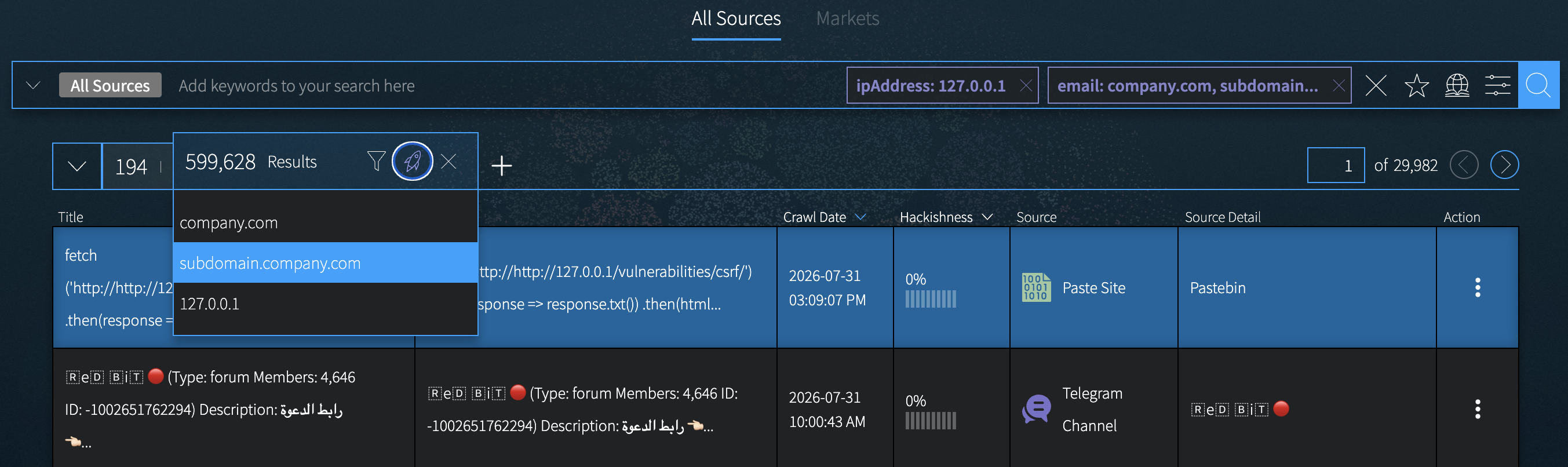
If your search included an Email, Credit Card, Cryptocurrency, or IP Address Entity Search tile, the Explore icon will appear next to the Quick Filter icon. You can use this icon to look up any of the values in the Explore: Entity section. Click the icon, then select one of the values from the drop-down.
Search Tabs
You can have multiple searches open, to allow for pivoting and further investigation. Click on the (+) icon to start a new search. You can go back to previous searches and results by either clicking on a specific Result tab, or using the left tab drop-down menu. You can have up to ten search inquiries open simultaneously.