
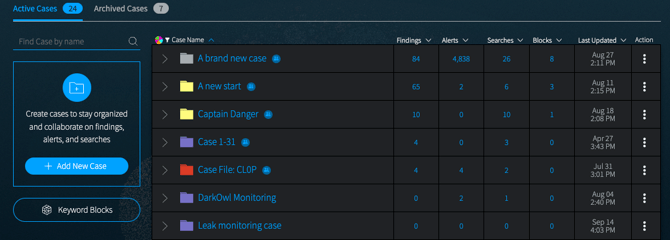
Cases can help you keep track of a specific topic or assignment you’re working on, including all related findings, alerts, saved searches, and search blocks. You can set up Cases for yourself, or invite other Vision UI users from your organization to work on Cases with you. When a Case is shared, you’ll see a Team icon next to the Case name in your main list.
Creating a Case
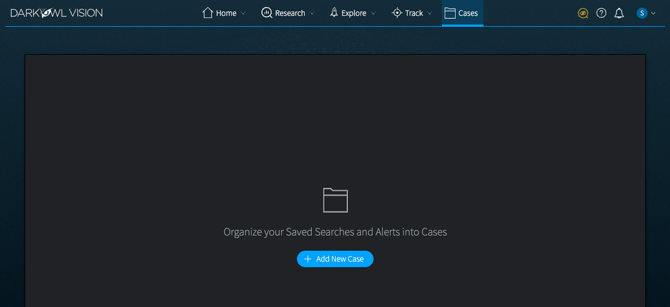
1. To get started, navigate to the Cases section, and click on Add New Case. (Once you’ve added a Case, the button will appear on the left side of the screen, as in the screenshot above.)
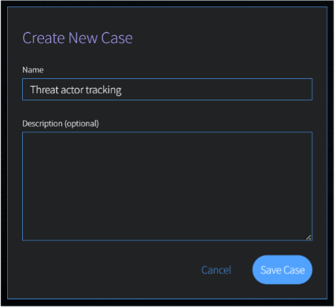
2. On the Create New Case modal, give your Case a name, so you can easily navigate back to it. You can optionally add a description for the case; you can always update the name or description at a later time. Once you’re ready to continue, click Save Case. A Case Created modal will appear.
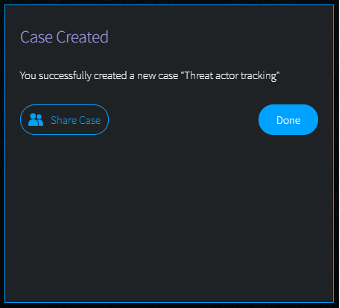
3. If this is your own Case, click Done. If you’d like to collaborate with another Vision UI user in your organization, click the Share Case button on the confirmation modal. You can always add members to the Case later.
4. Once you’ve created a Case, you can:
- Add Saved Searches (or, optionally, Search Blocks) into it. Any subsequent Alerts generated from the Saved Searches within the Case will automatically appear in the case, in the Case Alerts tab.
- Add Findings into it. Findings are search results or alert results that you would like to preserve. Findings can be ranked with Criticality and organized by Tag. Additionally, you or the team can add Notes to a Finding.
Learn more in the Creating a Finding and Working with Findings articles.
5. Case Navigation Buttons will help you quickly toggle between Cases. Click BACK to return to the main Case page. Previous Case and Next Case navigation will appear when you’ve set up multiple cases, enabling you to quickly switch between Case details.

Archiving a Case
Once a Case is no longer active, you can archive it to remove it from your Active Cases list.
Archiving preserves all Findings, Saved Searches, and Search Blocks within the Case, and archived Cases are retained for as long as your subscription is active. The Case itself becomes inaccessible until you reactivate it, and any automated monitoring on Saved Searches within the Case stops.
Anyone assigned to a Case can archive or reactivate it.
IMPORTANT: Case Alerts within an archived Case are treated as all Case Alerts, and are subject to a 90-day retention period. Any Alerts that should be preserved should be converted into a Finding, which are retained indefinitely during an active subscription period.
To archive a Case:
-
Go to the Cases page, under the Active Cases tab.
- Find the Case you want to archive and select the three-dot menu from the Action column.
- Select Archive from the drop-down list.
- The Case will now appear within the Archived Cases tab.

To reactivate an Archived Case:
- Go to the Cases page.
- Select the Archived Cases tab.
- Find the Case you want to reactivate and select the three-dot menu in the Action column.
- Select Re-activate Case.
- The Case will now appear within the Active Cases tab.
NOTE: When reactivated, the Case moves back to Active Cases, with all Findings, Saved Searches, and Search Blocks intact. Monitoring on Saved Searches does not resume automatically. Review your Saved Searches and re-enable monitoring where needed.