
Saved Searches
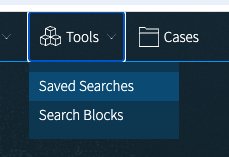
1. Navigate to Tools > Saved Searches from the top navigation bar.
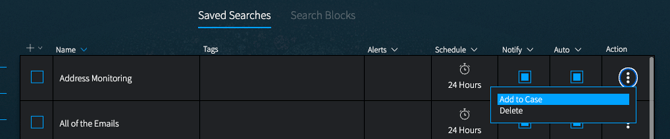
2. Select a Saved Search to move, and click on the three-dot button in the Action column.
3. On the Add Saved Search modal, select the Case to move the Saved Search into. You can also create a new Case from this modal, if you'd like to set up a new Case. Important: Ensure the box next to Keep a copy of the search in this list is unchecked.
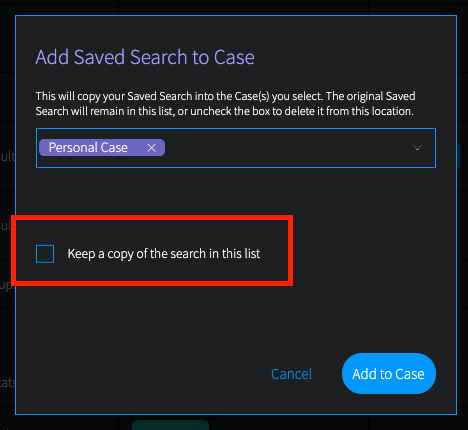
4. Click on Add to Case. Once clicked, the search will be removed from this list.
5. Repeat for all searches in the Saved Searches list.
Search Blocks
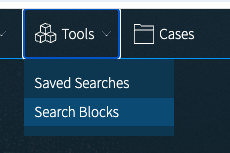
1. Navigate to Tools > Search Blocks from the top navigation bar.
2. Below the Saved Blocks heading, select a Search Block to move, and click on the three-dot button.
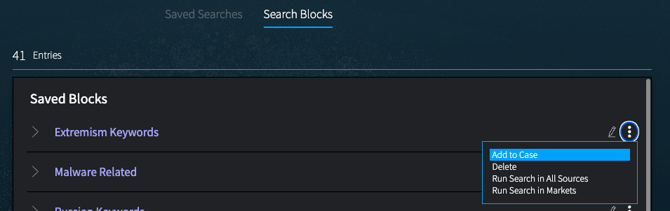
3. On the Add Saved Search modal, select the Case to move the Search Block into. You can also create a new Case from this modal, if you'd like to set up a new Case. Click on Add to Case.
4. Once your Search Block is moved, go back to the three-dot menu and select Delete.
5. Repeat for all Search Blocks in this list. Note: You don't need to move any of the Keyword Blocks. These are pre-built Search Blocks from DarkOwl and they will continue to be available after the migration.
On September 15, DarkOwl will also be implementing a 90-day data retention policy for Alerts. Alerts that need to be retained past 90 days should be converted to a Finding.
See these Knowledge Base Articles for information on reviewing and clearing Alerts: